
You can get the data from Azure blob storage to Power BI desktop. To connect Power BI with Azure Blob Storage, some prerequisite are required:
- Azure Account, if you don’t have, see here- how to create an Azure free account.
- Azure Storage Account, see here- how to create a storage account.
- Container in Azure Storage, see here- how to create a container in Azure storage.
- Upload files to Azure Storage container, see here – Upload a blob to the azure storage container.
Let’s Get Started step by step:
Step-1: Login into the Azure Portal https://portal.azure.com/, make sure you have followed the above mentioned all prerequisites.
Step-2: Open the container there is one csv file, we will get this file data to Power BI Desktop.

Step-3: Now you need two more details and these are :- Storage Account name & Access Key. So, follow below steps:-
Go to Home Page > Under Recent resources > Open Azure storage account.

Step-4: Now click on Access Keys under the Settings Lists, as you can see in below screen.
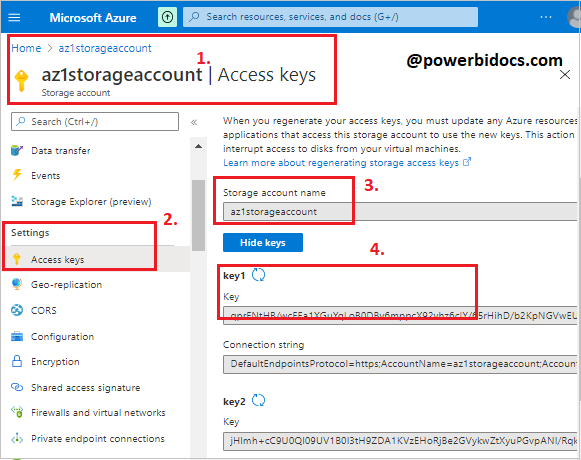
Step-5: Now noted down Storage account name & key 1 somewhere, we will use both in Power BI at the time get data.
Step-6: Open Power BI file and Click on Get Data > Select Azure Blob Storage > Click on Connect button.

Step-7: Now enter your Azure Storage Account name, click on OK button.
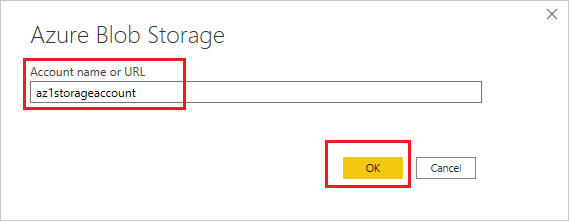
Step-8: Enter Account key & click on Connect button.

Step-9: Now you can see your file, then click on Transform data button.

Step-10: Once you click on transform data button, Power Query editor window will be open and here, you can view the preview of File, click on the combine file button as shown in below screen.

Step-11: Now you can see the file preview data then click on OK button.

File PreviewStep-12: Now you can remove the unnecessary column and close the power query editor window. It might be take few seconds to save the all changes, and you can rename the dataset.

Refer more Azure Post: Microsoft Azure Topics
Hope you enjoyed the post. Your valuable feedback, question, or comments about this post are always welcome or you can leave us message on our Contact form , we will revert to you asap.
