
The CALENDAR() function is used in Power BI to create a date table by specifying a start date and an end date. This function allows you to define a custom date range and is typically used for creating time-based tables for use in reports and data modeling.
Following these steps to create a calendar table-
Step 1: Create a new table by going to the Modeling tab and clicking on New Table.
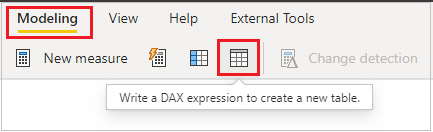
Step 2: Write the following DAX to create a calendar table with all the necessary columns.
CALENDAR(DATE(2025, 1, 1), DATE(2025, 12, 31))
This DAX function creates a calendar table with a list of dates starting from January 1, 2025, to December 31, 2025.
-
CALENDAR(start_date, end_date)is used to generate a continuous range of dates. -
DATE(2025, 1, 1)represents the start date. -
DATE(2025, 12, 31)represents the end date.

As you saw, the CALENDAR DAX function generates a table containing a single column named Date. Now, in the existing calendar table, you can add more columns to extract additional details from the Date column, such as Year, Month, Quarter, Day of Week, etc.
To achieve this, the ADDCOLUMNS DAX function is used. See the code below for your reference.
Calendar Table =
ADDCOLUMNS (
CALENDAR (DATE (2025, 1, 1), DATE (2025, 12, 31)),
"DateAsInteger", FORMAT ([Date], "YYYYMMDD"),
"Year", YEAR ([Date]),
"Monthnumber", FORMAT ([Date], "MM"),
"YearMonthnumber", FORMAT ([Date], "YYYY/MM"),
"YearMonthShort", FORMAT ([Date], "YYYY/mmm"),
"MonthNameShort", FORMAT ([Date], "mmm"),
"MonthNameLong", FORMAT ([Date], "mmmm"),
"Day", DAY ([Date]),
"DayOfWeekNumber", WEEKDAY ([Date]),
"DayOfWeek", FORMAT ([Date], "dddd"),
"DayOfWeekShort", FORMAT ([Date], "ddd"),
"WeekNumbeOfTheYear", WEEKNUM ([Date]),
"IsWeekend", IF ( WEEKDAY ([Date], 2) > 5, TRUE(), FALSE() ),
"Quarter", "Q" & FORMAT ([Date], "Q"),
"YearQuarter", FORMAT ([Date], "YYYY") & "/Q" & FORMAT ([Date], "Q"),
"IsToday", IF ( [Date] = TODAY(), TRUE(), FALSE()
)
)
If you want to create a date table based on the minimum and maximum dates from an existing date column in your dataset:
CALENDAR ( MIN(Orders[Order Date]), MAX(Orders[Order Date]))
This will generate a date range from the earliest date to the latest date present in the OrderDate column of the Sales table.
Thanks for reading this post! I hope you found it helpful. Feel free to share it with others or your teammates so they can benefit from it too. 😊

Please help me with dax to creat fiscal/financial calendar