
Evaluates the value of the expression for the dates in the quarter to date, in the current context. It comes under Time Intelligence Dax function category.
Syntax:
TOTALQTD(<expression>,<dates>,<filter>)
Description:
| S no. | Parameter | Description |
| 1 | expression | An expression that returns a scalar value. |
| 2 | date | A column that contains dates. |
| 3 | filter | (optional) An expression that specifies a filter to apply to the current context. |
So, Let’s start with an example, download the sample Dataset from below link
Step-1: Create a calendar table to using existing dataset “Order Date” column.
Go to Modeling Tab > Click to table icon & write below DAX
Calendar =
CALENDAR(MIN('Global-Superstore'[Order Date]),
MAX('Global-Superstore'[Order Date]))
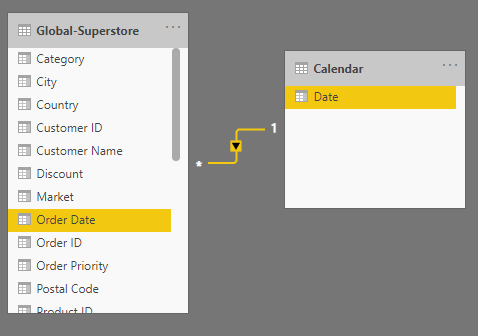
Step-2: After that create a relationship between both table.
Step-3: Now, create a measure to calculate the running total sum for sales.
QTDSales =
TOTALQTD(SUM('Global-Superstore'[Sales]), 'Calendar'[Date])
Step-4: Drag QTDSales measure and Year, Quarter, Month & Day columns from Calendar table & Sales from Global-Superstore table.

As you see in above screen shot, it returns the running total for Quarter-1 sales. Here, current quarter months are – JAN, FEB & MAR.
For next Quarter, it will start sales summation from the beginning.Please refer to the screenshot below for Quarter 2.

Recommended Post: TOTALMTD DAX
Hope you enjoyed the post. Your valuable feedback, question, or comments about this post are always welcome or you can leave us message on our contact form , we will revert to you asap.
