
In February 2023, Power BI introduced a new feature – “Conditional Formatting based on string fields.”
With this enhancement, users can establish conditional formatting rules that rely on string fields, allowing for more versatile and tailored data visualization.
Following the below steps-
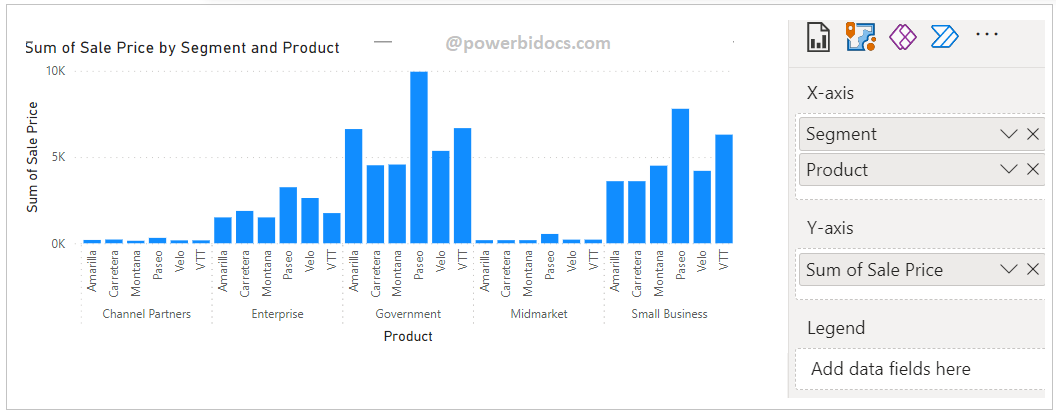
Step1: Add a column chart and populate it with specific fields. Refer to the provided screenshot below for guidance.
In X-axis you can see the two fields Segment & Product. And in Y-axis Sale Price.
Step 2: Select the visual and go to the Format visual tab >Expand Column section> under Colors section click on fx icon just next to Default.

Step-3: One dialog box opens > choose Rules in format style > Select Column name > Type String/Text value > OK.

Step-4: Now you can see the final result as below.

As you can see in the above provided screenshot, the chart color has been modified based on the values of string fields.
Refer other Power BI topics: Power BI tutorials
