
Power BI Service enables you to configure Data Alerts to receive notifications when data in your dashboards exceeds the predefined thresholds you specify
Before moving further you have to know:- How to create a Dashboard in Power BI?
Note:
- Alerts can only be set on tiles pinned from report visuals, and only on Gauges, KPIs, & cards.
- If you are Power BI Pro license user then you can set alerts on tiles in any other workspace, too.
- Only you can see the alerts you set, even if you share your dashboard.
- The dashboard owner can’t see alerts you set on your view of their dashboard.
- Data Alerts does not support card tiles with date/time measures.
- You cannot use String Data type here because Alerts only work with numeric data types.
- Alerts only work on refreshed data. They don’t work on static data.
So, let’s begin with an example: a sample dataset for the dashboard.
| Year | Actual Sales | Target Sales |
| 2015 | 245000 | 1300000 |
| 2016 | 1020000 | 1000000 |
| 2017 | 1300000 | 1300000 |
| 2018 | 700000 | 1600000 |
| 2019 | 200000 | 1000000 |
| 2020 | 200000 | 2500000 |
| 2014 | 200000 | 1300000 |
Step-1: Open the Dashboard in Power BI Service. Here, we have two visuals: 1- Card & 2- Gauge Visual. I will set Data alert for Card visual.

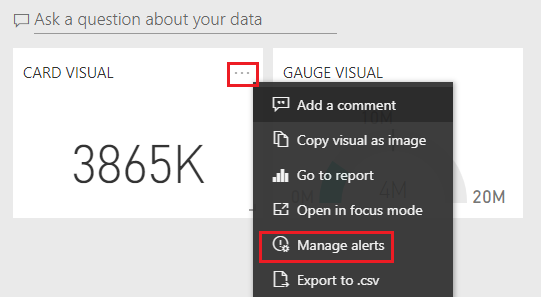
Step-2: Now click to ellipse icon of card visual > Select Manage alerts.
Step-3: To create a new alert, click to “Add alert rule“. Ensure the Active slider is set to On, and give your alert a title. Titles help you easily recognize your alerts.

Step-4: Here, the Alert notifies you once a day if the total Sales exceed 3,900,000.
Notification Frequency: Power BI checks whether it has been more than an hour or more than 24 hours (depending on the option you selected) since the last alert.

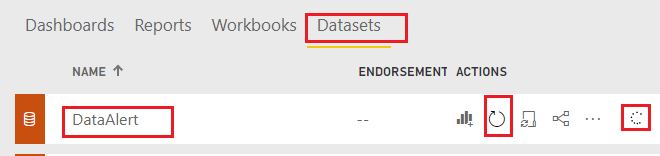
Step-5: To check the alert, increase some sales values in backend and refresh the dataset manually or you can set the schedule refresh time.
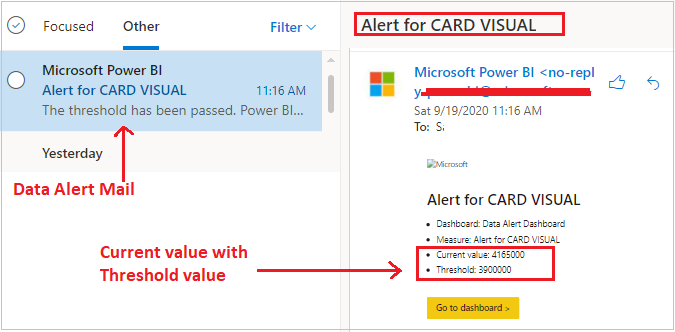
Step-6: If you’ve set the alert to send you an email, you’ll get mail something like this in your Inbox.
Step-7: After sometime you will get the notification in Power BI Service & dashboard visual too.


How to Manage Data Alerts?
Click to Setting icon > Select Settings > after that click to Alerts tab

From here you can modify & delete the existing alerts.
Recommended Post: Subscribe Power BI Report & Dashboard
Hope you enjoyed the post. Your valuable feedback, question, or comments about this post are always welcome or you can leave us message on our contact form , we will revert to you asap.
