
Power BI November 2020 updates – Power BI has released Apply all filters feature. This feature helps you to optimize the filter pane for query reduction by applying all filter changes at once.
It is useful if you want to defer when to apply filter changes, so that you only have to wait once after you are ready to apply any filter changes to the report or visuals.
By default, this feature will be turned off, and report authors have the option to enable or disable it at the report level.
Prerequisite
Download Power Desktop latest version – https://powerbi.microsoft.com/en-us/downloads/
Sample Dataset download from here- Global Super Store Dataset
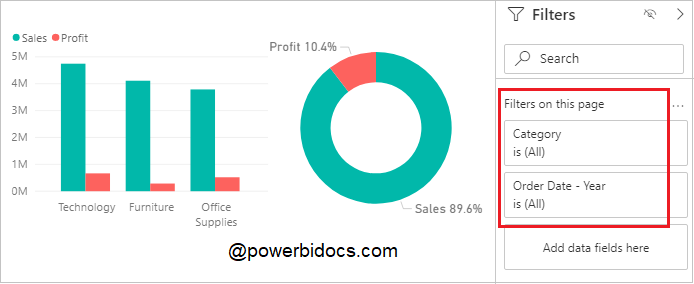
Add some visual on report page for example & Drag some fields under Filters Pane-
Follow these steps in order to enable Apply all button under Filter Pane-
Step-1: Click on File Tab > Option & Settings > Options.
Step-2: Current File >Click on Query reduction > select “Add a single Apply button to..” then click on OK.

Step-3: You can see the Apply button under Filters Pane after all fields. Now you can apply many filter selections at once.
Also, this feature will be useful for any report users who doesn’t want to wait for the report to update each time a single filter variable is applied.

How to customize Apply button-
Click on View Tab > Expend the Themes section > Choose customize the current theme > Filter Pane

See the customize filter pane output –

Refer other Power BI topics: Power BI tutorials
Hope you enjoyed the post. Your valuable feedback, question, or comments about this post are always welcome or you can leave us message on our contact form , we will revert to you asap.
