
Quick measures are pre-built or ready-made measures. You don’t have to write a DAX formula for them; it’s done for you based on the input you provide in a quick measure dialog box.
Additionally, they help you write or understand the DAX formula. Let’s start with an example; you can download the sample dataset from the link below:
Follow the below steps-
Step-1: Open the Power BI file and load the sample dataset.
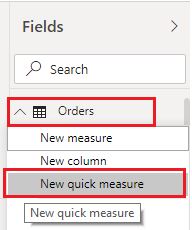
Step-2: Right-click on the ‘Orders’ dataset, then click on ‘New quick measure.’
Step-3: After that, the Quick Measure dialog box appears, allowing you to select your desired calculations.
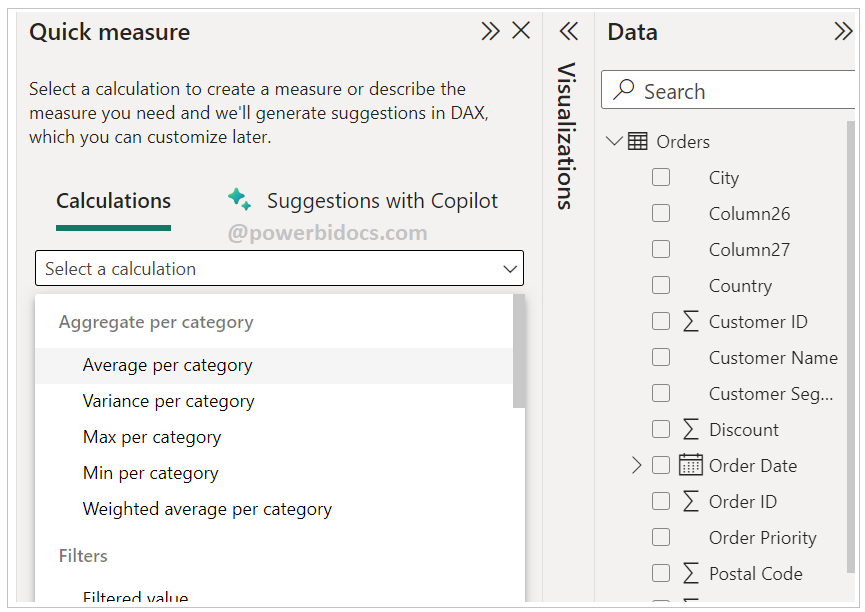
Quick measures provide calculations in six categories, which are:
- Aggregate per category
- Filters
- Time intelligence
- Totals
- Mathematical operations
- Text
So, let’s begin with Mathematical operations. Below is a screenshot of the sample dataset.
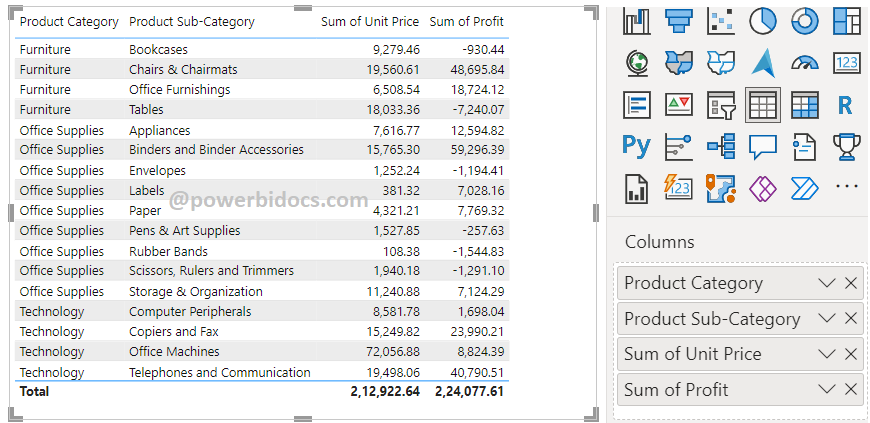
Now, add the ‘Unit Price’ and ‘Profit’ fields using the quick measure for addition calculation.
Drag the ‘Profit’ and ‘Unit Price’ fields into the ‘Base value’ box and the ‘Value to add’ box, then click the ‘Add’ button to proceed further.
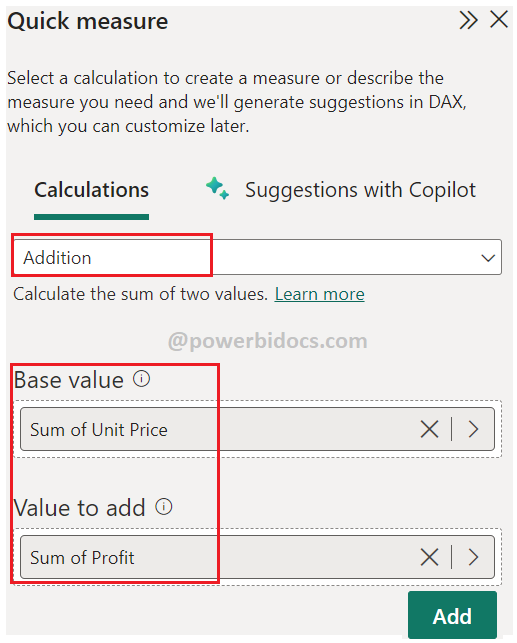
Created measure by Quick Measures as below
Unit Price plus Profit =

SUM(‘Orders'[Unit Price]) + SUM(‘Orders'[Profit])
Now, drag the new measure into the table visual, and it will return the sum of Profit and Unit Price in a new column.
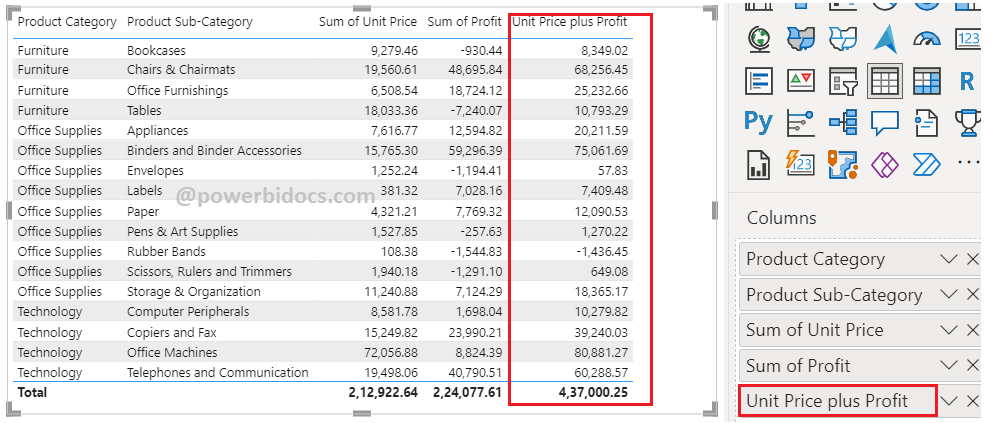
You can follow the same process to work with other calculations.
Similar Post: Quick measure suggestions in Power BI
Hope you enjoyed the post. Your valuable feedback, question, or comments about this post are always welcome or you can leave us message on our contact form , we will revert to you asap.
