
In Power BI Service, you can manage the visual header, which means you can choose to display or hide the icons in the report visual header.
Whenever you hover the mouse over any report visual, you will notice some default visual header icons. Please refer to the screenshot below for reference.

How to Manage Visual header on Power BI Service?
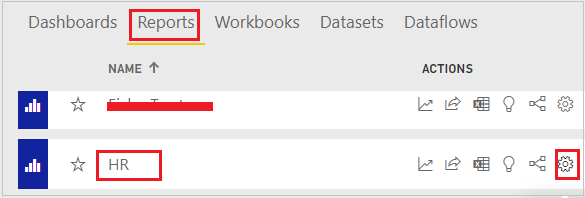
Step-1: Go to the ‘Reports’ tab within the workspace, then click on the ‘Report Settings’ icon.
Step-2: Scroll down and turn on the visual options (‘Hide the visual header in reading view’). This action will hide all report visual header icons for the selected report.

Step-3: To check, open the report & hover the mouse in any visual.

And you can see in above screen shot visual header icons has been hide.
Hope you enjoyed the post. Your valuable feedback, question, or comments about this post are always welcome or you can leave us message on our contact form , we will revert to you asap.
