In this blog post, you will learn how to add Unicode characters or emoji symbols to a Power BI report based on specific conditions.
Sample Dataset
Take a look at the sample data below. It contains feedback entries such as ‘Good’, ‘Bad’, and ‘Poor’.
| ID | feedback |
| 1 | Good |
| 2 | Poor |
| 3 | Bad |
| 4 | Good |
| 5 | Bad |
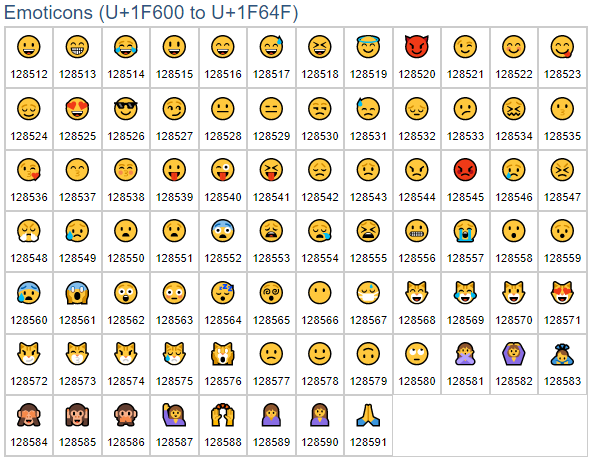
In the screenshot below, you can see various Unicode emoji symbols along with their corresponding Unicode numbers.
You can use these numbers with the UNICHAR DAX function to display Unicode characters or emoji symbols directly in your Power BI report.
Let’s get started-
Now, add a new column to your table and enter the following DAX formula.
Emoji_ =
IF(Feedback[feedback]="Good", UNICHAR(128512),
IF( Feedback[feedback]="BAD", UNICHAR(128530),
UNICHAR(128557)
))
See the Output-

Thanks for reading this post! I hope you found it helpful. Feel free to share it with others or your teammates so they can benefit from it too. 😊
